PermitGuard — User Manual
PermitGuard watches your short-term rental permits so you don't have to. Enter each property once, and it tracks every permit's expiration date, emails you at 90, 60, 30, and 7 days before a renewal is due (and again if a permit lapses), and keeps the city's renewal steps, fees, and portal links one click away.
This manual is written for the person actually running the rentals — an owner, office manager, or co-host. No technical background is assumed. All screenshots show fictional demo data.
Fastest way to learn the app: sign in and click the round ? button in the top bar. Question-mark markers appear next to buttons and status badges across the app — hover (or tap) any of them for a plain-language explanation of what that control does. Click the ? again to turn the markers off.
Quick answers
- How do I add my first property?
- How do I get renewal alerts?
- What do the green / yellow / red statuses mean?
- How do I check a permit against the city's records?
- How do I track a permit PermitGuard doesn't know about?
- How do I get text (SMS) alerts?
- How do I prove what I did and when?
- What does it cost?
- Which cities are covered?
- How do I change my password or turn on two-factor login?
1. What PermitGuard does
Four words cover the whole app:
- Listing — one rental property (a house, condo, or unit). You add these.
- Permit — a license or registration the city requires for that listing, with an expiration date. PermitGuard pre-loads the required ones for covered cities; you fill in your permit number and expiration date.
- Alert — an email (and, on paid plans, a text for urgent cases) that fires before a permit expires, when a night cap is close, or when a tax filing is due.
- Compliance — the green / yellow / red rollup on the dashboard telling you whether anything needs attention right now.
Renewal checks run automatically every morning. You can also run one any time with the Check Renewals Now button on the dashboard.
2. Signing in and getting around
- Create an account at Sign up with your email and a password (8+ characters), or use Sign up with Google. Every new account starts a 14-day free trial — no card required.
- Forgot your password? Use the Forgot password link on the sign-in page and a reset link is emailed to you.
- The left sidebar has everything: Dashboard, Listings, Permits, Calendar, Alerts, Cities, Billing, Settings, Feedback. On a phone, the sidebar becomes a menu behind the ☰ button.
- Top bar, right side: the ? hover-help toggle, the Help link (this manual), Feedback, and the dark/light mode switch.
3. The Dashboard
Your at-a-glance answer to "is anything about to bite me?"
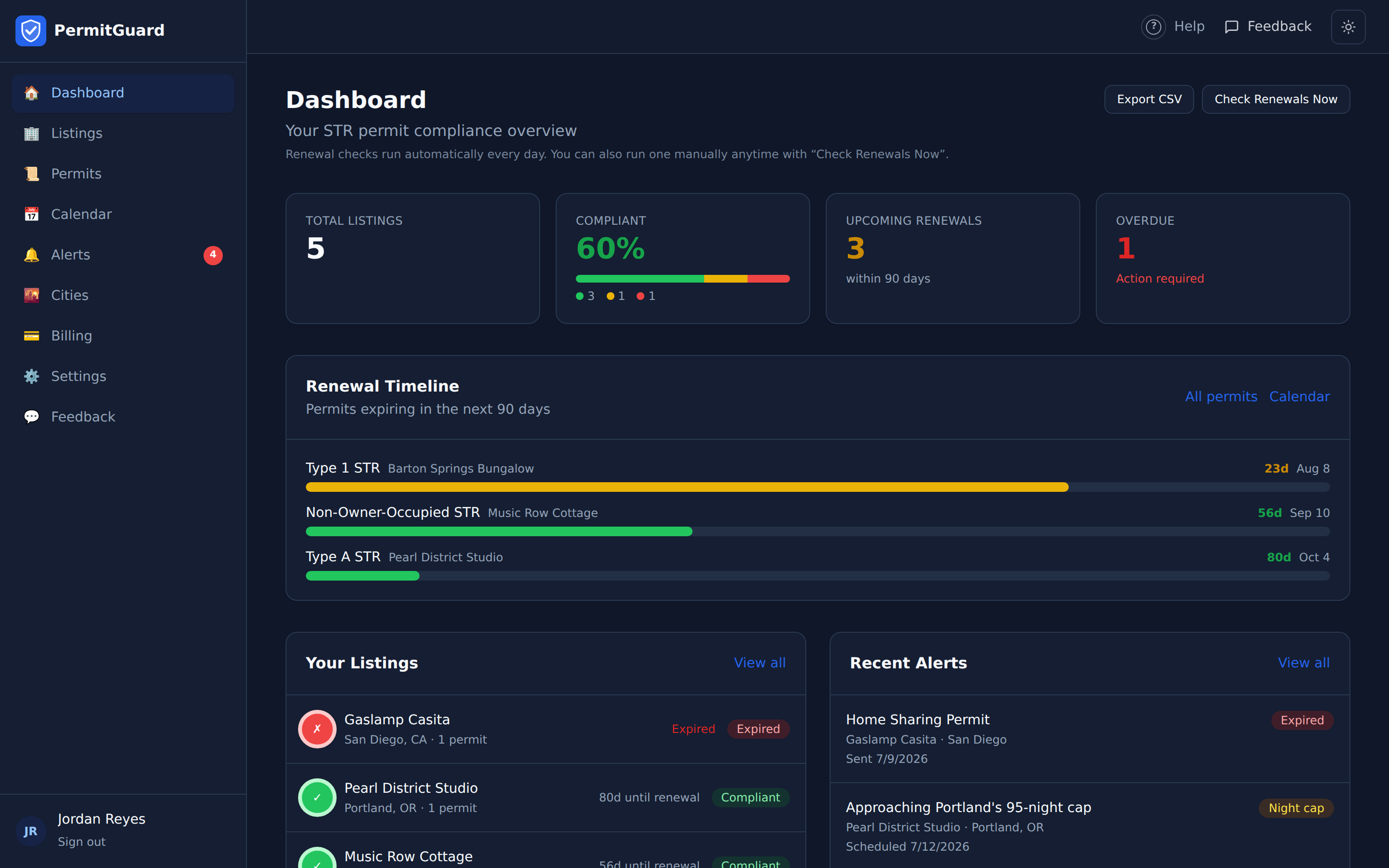
From top to bottom:
- Total Listings — how many properties you're tracking.
- Compliant — the share of your listings whose permits are all valid and not expiring within 30 days. The small bar breaks it down: green (compliant), yellow (expiring soon), red (expired).
- Upcoming Renewals — permits expiring within the next 90 days.
- Overdue — permits that have already expired. Clear these first: operating on a lapsed permit risks fines of $500–$2,000 per day in enforcement-heavy cities, and platform de-listing.
- Renewal Timeline — every permit due in the next 90 days, soonest first. The bar fills and turns red as the deadline approaches.
- Your Listings — each property with its compliance badge and days until its next renewal. Click one to open it.
- Recent Alerts — the latest alerts sent or scheduled.
- Check Renewals Now (top right) — re-scores every listing against today's date and creates any due alerts on the spot. The same check runs automatically every day, so this is optional.
- Export CSV — downloads every listing and permit with statuses and renewal dates. A tidy compliance record for your files or your accountant.
What the colors mean
Everywhere in the app, permit status follows one rule:
- Green / Valid — expiration date is more than 30 days away.
- Yellow / Expiring — due within 30 days. Time to start the renewal.
- Red / Expired — past its expiration date. Act now.
- Gray / Unknown or Pending — no expiration date entered yet. Open the listing and add one so alerts can fire — PermitGuard can't warn you about a date it doesn't have.
4. Adding and managing listings
Listings is where properties live.
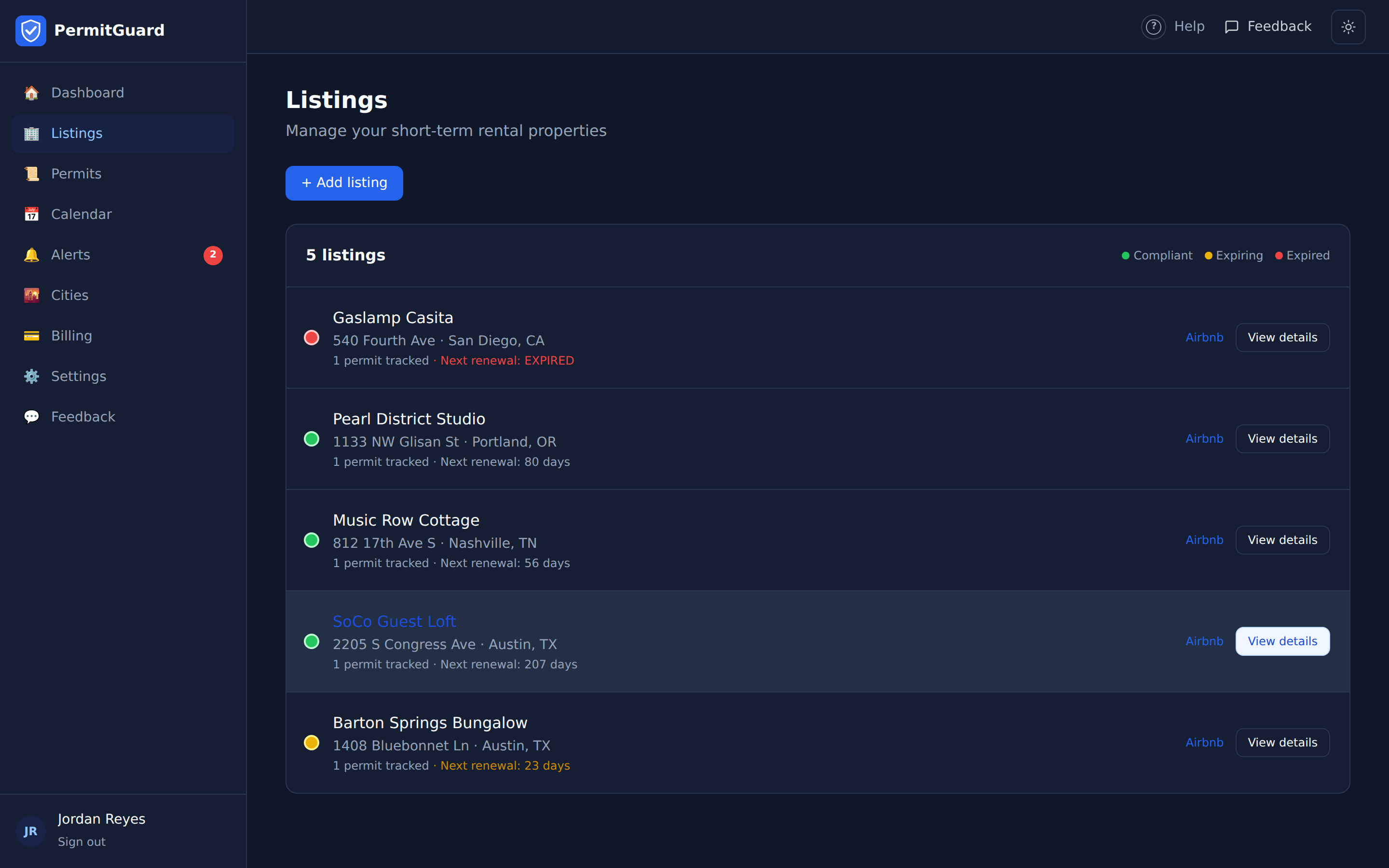
To add a property: click + Add listing, enter a name (e.g. "Barton Springs Bungalow"), the street address, city, and state. Everything else is optional. When the city is one of the covered cities you'll see "✓ … is supported — permit rules will be auto-loaded", and on save PermitGuard automatically attaches every permit that city requires — with its fee, renewal window, official renewal steps, and city portal link.
If your city isn't covered yet, the listing is still tracked — use custom permits to add its permits by hand.
To edit or remove: open the listing, then Edit listing (name, address, links) or Delete listing. Delete asks "Are you sure?" first — it permanently removes the listing with its permits and alert history.
5. Inside a listing
Click any listing to see everything the city expects of it.
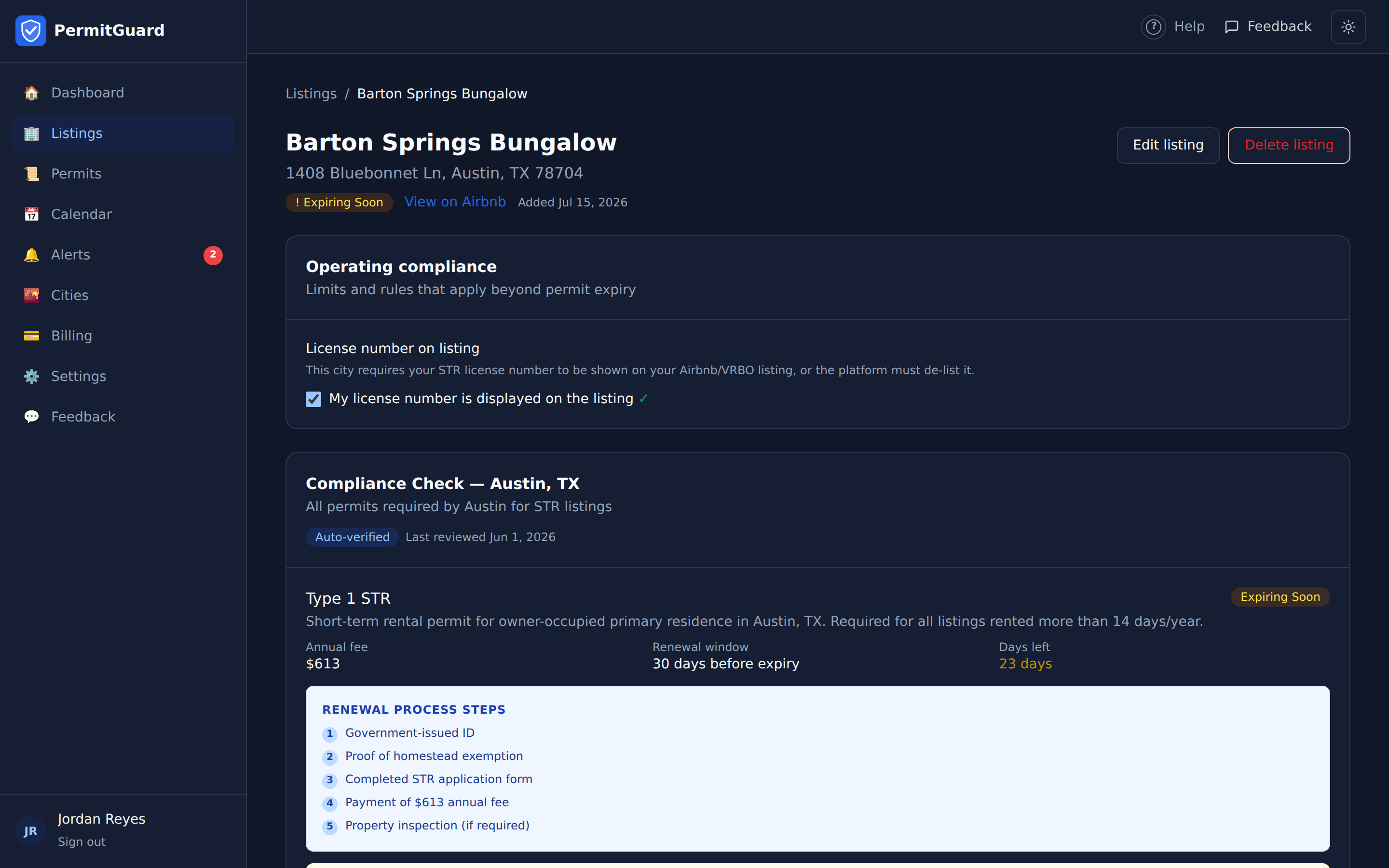
Operating compliance (shown when the city has such rules):
- Annual night cap — some cities limit how many nights per year you may rent (e.g. Portland Type B: 95 nights). Keep "Nights booked this year" up to date; at 80% of the cap you get a warning alert.
- License number on listing — some cities require your permit number to be visible on the Airbnb/VRBO listing itself, or the platform must de-list you. Tick the checkbox once it's posted; PermitGuard reminds you until you do.
Compliance Check — every permit the city requires, with status, the fee where the city publishes a fixed one (otherwise "Varies"), renewal window, days left, numbered renewal steps, and a "Renew at city portal" link. Cities verified against a live public registry show an Auto-verified badge; others show the manual-check mode. "Last reviewed" is when we last re-confirmed the city's rules against official sources.
Permits — the permits actually tracked on this listing. For each one you can edit the permit number and dates, see its alert history, and:
Verify now — checking a permit against city records
Click Verify now on a tracked permit to check it against the city's official public registry.
- Austin, New Orleans, and Seattle return a live result and stamp "Last verified".
- Austin caveat: the city's public dataset hides house numbers, so a "found" result means a licensed STR of that type is on file on your street + ZIP — it is not an exact-address confirmation. Confirm your exact unit and expiration on the Austin portal.
- All other cities open a guided manual check with a direct link to the city's lookup page.
Custom permits
Add a custom permit tracks anything PermitGuard doesn't pre-load: HOA approval, liability insurance certificate, fire safety inspection, business license, and so on. Give it a name and an expiration date and it gets the same 90/60/30/7-day alert ladder as city permits. Custom permits show a blue Custom tag.
Documents — a per-listing vault for links to your permit PDFs, inspection certificates, insurance, and tax receipts (paste links from Google Drive, Dropbox, etc. — files are not uploaded to PermitGuard). Everything's in one place at renewal or audit time.
Notes — free-form notes on the listing ("Inspector prefers mornings", "Renewal receipt #12345").
6. The Permits page
Every permit across all listings in one sortable table. Filter by Expired / Expiring / Valid / No date, click a column heading to sort, and click any row to jump to its listing. "No date" is the important filter: those permits can't generate alerts until you add an expiration date. You can also add a custom permit from here.
7. The Calendar
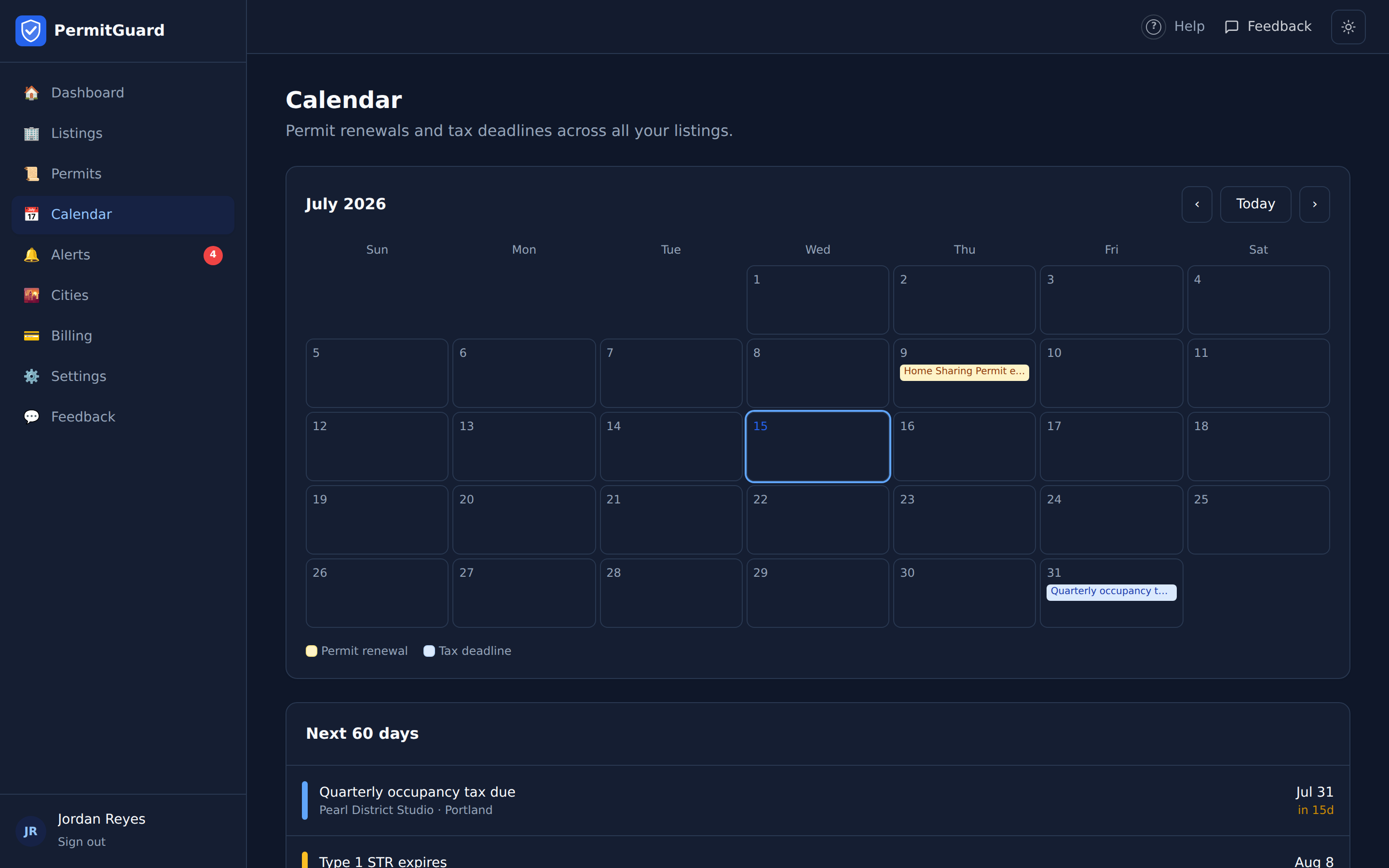
A month view of everything with a date:
- Amber entries — permit expirations.
- Blue entries — occupancy-tax filing deadlines, for cities where you must self-remit lodging tax on direct bookings.
Below the month grid, Next 60 days lists everything coming up, soonest first. Click any entry to open its listing.
8. Alerts
PermitGuard's whole job is to warn you early, then keep warning you.
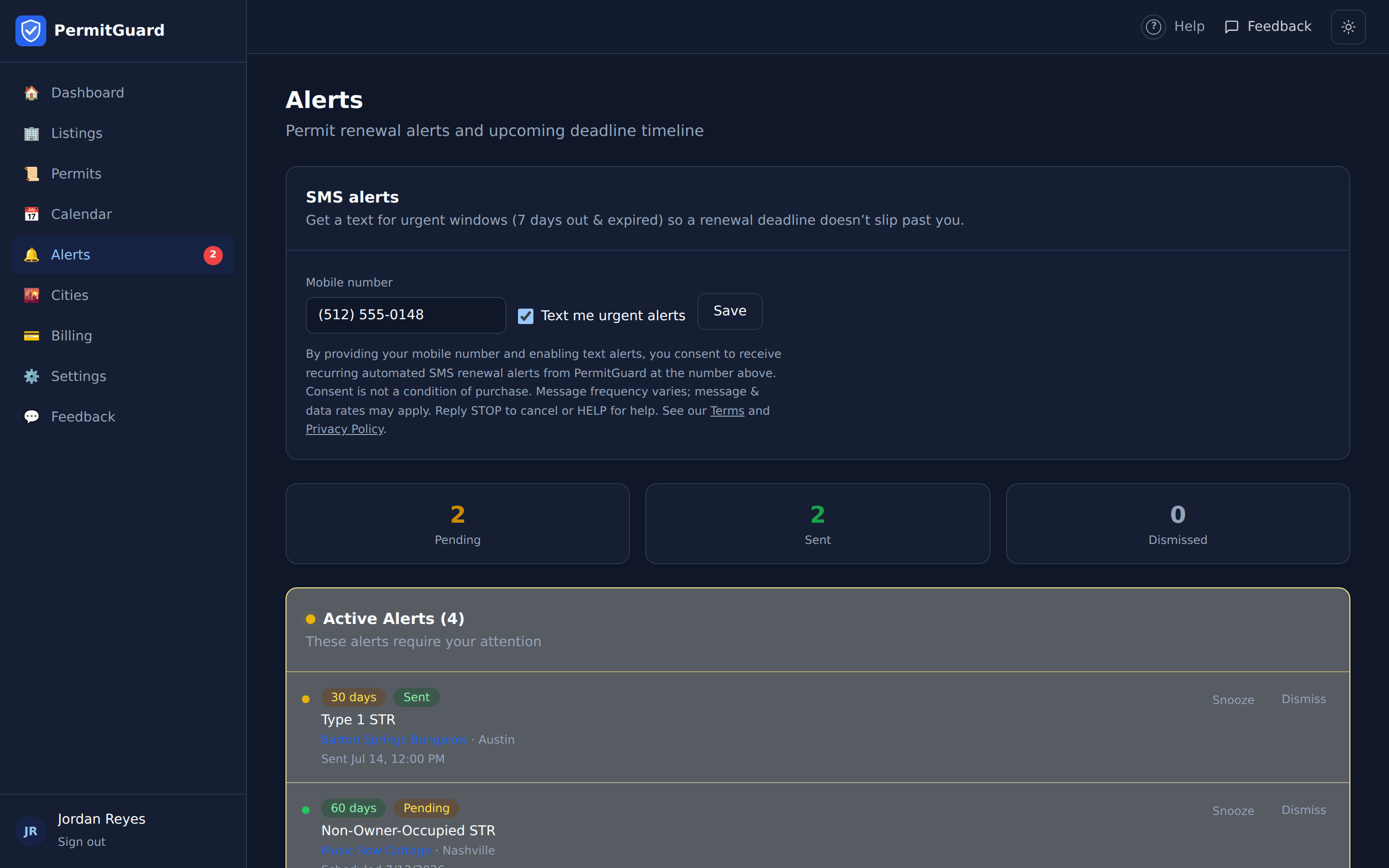
When alerts fire (all by email):
- 90, 60, 30, and 7 days before each permit expires — with the renewal steps, fee, and portal link in the email.
- On expiration — if a permit lapses.
- Night cap — when a listing reaches 80% of its city's annual night limit.
- Tax filing — about 14 days before an occupancy-tax deadline in cities with a filing schedule.
- License display — reminders until you confirm your permit number is shown on the platform listing.
Snooze vs Dismiss: Snooze hides an alert for 3, 7, or 14 days, then it returns. Dismiss clears it permanently. Neither renews anything — after you renew a permit, update its new expiration date on the listing and the alerts stop on their own.
Text (SMS) alerts
On paid plans, add your mobile number (on the Alerts page or in Settings) and tick Text me renewal alerts. Texts are sent at every renewal window — 90, 60, 30 and 7 days before expiry, and on the day a permit lapses — mirroring the email ladder. You get one text per window per permit and never more, even if a send is retried. Reply STOP to any text to opt out.
SMS requires a paid plan at the moment the text is sent: if a subscription lapses back to free, texts stop even if the toggle is still on.
9. Audit log
Audit log in the sidebar is an append-only record of everything that happened to your listings and permits — with a timestamp on every line. Nothing in PermitGuard edits or deletes an entry, which is what makes it usable as evidence when a city, a platform, or an insurer asks what you knew and when.
It records:
- Your changes — listings added, edited (with the old and new value of each field), or deleted; permit numbers and expiration dates changed; documents added or removed.
- What PermitGuard did — every renewal notice actually emailed or texted to you, and when. These are only written on a real delivery: a notice that failed to send is never recorded as sent.
- Your decisions — alerts you dismissed or snoozed, and for how long.
Each entry is labelled by you or by PermitGuard so it's clear who acted.
- Filter by listing to get the trail for one property. Each listing's own page also shows its recent Audit trail near the bottom.
- Export CSV downloads the trail (up to the 200 most recent entries) for your records or your accountant.
- Deleting a listing does not erase its history — the entries remain, so the record that it existed and was removed survives.
10. Cities and coverage
PermitGuard covers 35 US cities: Austin TX, Nashville TN, Denver CO, Portland OR, San Diego CA, New York NY, Chicago IL, Boston MA, Miami Beach FL, San Francisco CA, Honolulu HI, Los Angeles CA, New Orleans LA, and Seattle WA, plus the Florida Gulf coast (Clearwater, St Pete Beach, Treasure Island, Madeira Beach, Indian Rocks Beach, Anna Maria, Holmes Beach, Bradenton Beach, Sarasota, Siesta Key, Longboat Key, Venice), Phoenix AZ, Scottsdale AZ, Charleston SC, Isle of Palms SC, and the rest of the Denver metro (Lakewood CO, Englewood CO, Centennial CO, Castle Rock CO, Arvada CO).
- The Cities page (and the public coverage page) lists each city's permit types, fees, renewal windows, and official portal links — read straight from the live database, so what you see is always what we currently hold. How recently that was confirmed against the city is a separate question, answered by each city's freshness badge (below).
- Fees are pre-loaded for the 14 original cities and the 5 Denver-metro cities (Lakewood, Englewood, Centennial, Castle Rock, Arvada) — 19 in total — where the city publishes a fixed fee schedule. For the 16 Gulf-coast and Southeast cities (Florida Gulf coast, Phoenix, Scottsdale, Charleston, Isle of Palms) the rules, renewal windows, and portal links are loaded but the fee shows as "Varies" — we link you to the official portal rather than quote a number we can't stand behind.
- Live registry verification is available in Austin, New Orleans, and Seattle; other cities use a guided manual check.
- Every city shows its own freshness badge plus a "Live registry check" or "Manually maintained" label, so you can see how current that city's rule set is and how it was checked.
How city data is kept current
- A person on our team re-confirms each city's rules against its official source on a 90-day cycle. Every covered city is on that 90-day interval.
- Between reviews, an automated change check runs monthly. It fetches each city's official source, normalizes and hashes the content, and compares it against the last version we recorded.
- When a source has moved, the change is interpreted automatically against the specific fields we store — renewal window, fee, night cap, tax rate. Some changes are applied without waiting for a person, and only when all of these hold: the new value is tied to a word-for-word quote from the source; that quote is checked against the page we actually fetched, so an invented quote or one from the old version of the page fails; the reading is high-confidence; the value passes the same validation a human approval has to pass; and the change isn't high-consequence.
- High-consequence changes always go to a person, however confident the reading — clearing a value we already hold, a renewal window that shrinks or crosses an alert threshold, a large fee swing, a night cap that rises, a tax rate that falls, or dropping a license-display requirement. Those rules are deliberately one-sided: we accept changes that make us warn you *earlier* and escalate ones that would make us warn you *later*. If the interpreter can't ground a value in a quote, is unsure, or reads the page two ways, it files for review instead of guessing.
- Every automatic change is recorded and reversible. The source URL, the exact quote, the model, its confidence and the previous value are written in the same transaction as the change, under a machine identity — never a person's name.
- Why not require a person for everything? We used to. A rule left stale because nobody worked a review queue is exactly as wrong as one misread, and far more likely — doing nothing was never the safe option, only the invisible one.
- The automated check doesn't succeed for every city. Some official sources don't respond or return errors. When we can't check a city, its badge says "change monitoring unavailable" rather than showing as fine — a change since that city's last confirmation may have gone unnoticed. Each city's badge is the honest answer for that city.
- In a city we don't cover, you can still track every permit yourself with custom permits.
11. Billing and pricing
- $29/month covers your first 3 active listings — unlimited permits on each.
- Above 3 listings the per-listing rate drops as you grow: listings 4–10 are $9 each, 11–25 are $6 each, and 26+ are $5 each. (10 listings = $92/mo, 25 = $182/mo, 50 = $307/mo.)
- Managing 100+ listings? Contact support for custom portfolio pricing — negotiated rates are time-limited and the end date plus the rate it converts to are always shown on your Billing page.
- Every account starts with a 14-day free trial, no card required. When the trial ends, your data stays put, but adding new listings is paused until you subscribe.
- The Billing page shows your current plan, trial days remaining, and a live total based on your listing count. Add payment method opens secure Stripe checkout; Manage subscription opens the Stripe portal to update your card or cancel — PermitGuard never sees your card number.
12. Settings and security
- Profile — change your display name. Your login email is fixed (contact support to change it).
- Password — change it with your current password. If you've forgotten it, sign out and use Forgot password instead.
- Two-factor authentication — optional but recommended. Scan a QR code with a free authenticator app (Google Authenticator, 1Password, Authy); after that, sign-in asks for a 6-digit code from your phone. You get one-time backup codes in case you lose the phone.
- SMS alerts — the same text-alert preferences as on the Alerts page (paid plans; every renewal window).
13. On your phone
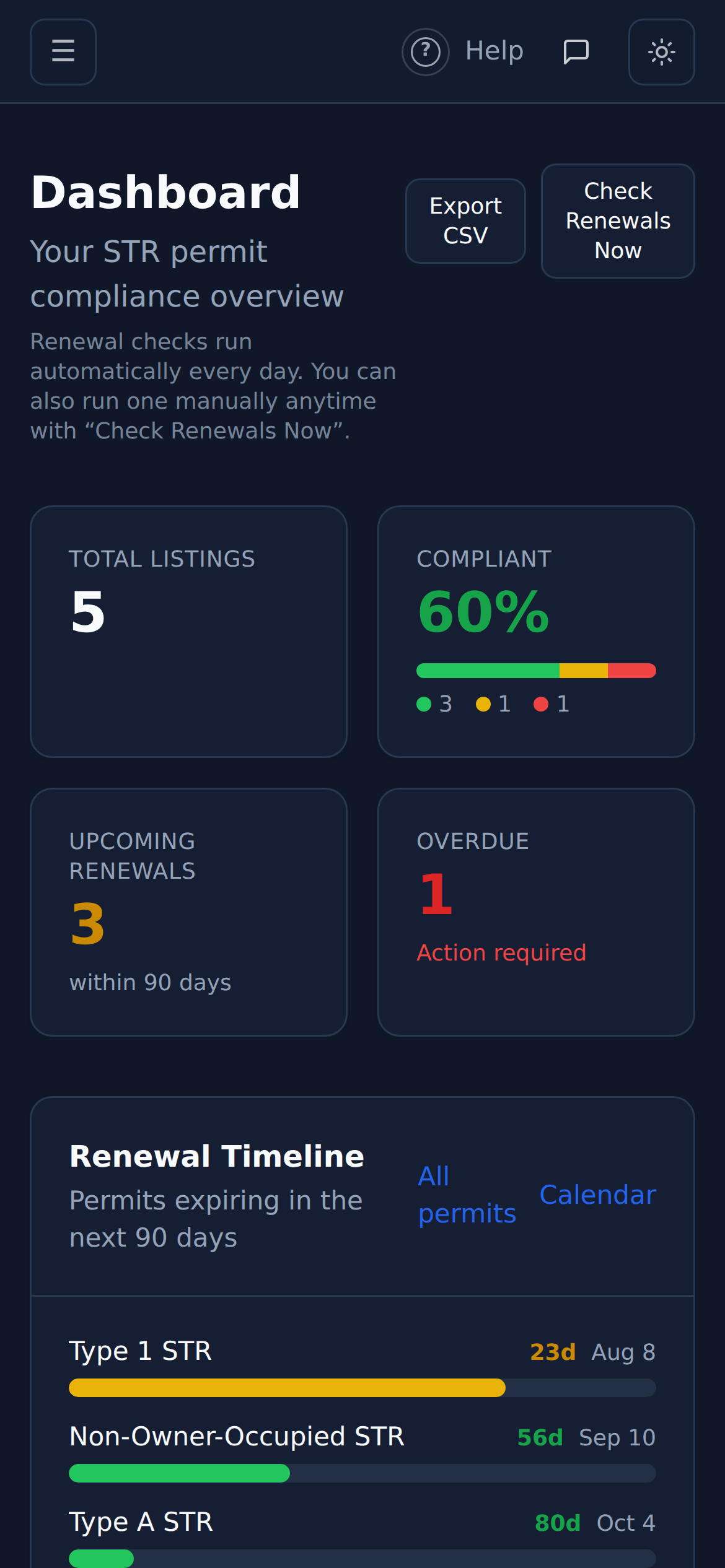
PermitGuard works in your phone's browser — the sidebar becomes a menu behind the ☰ button, and everything else works the same.
14. Getting help
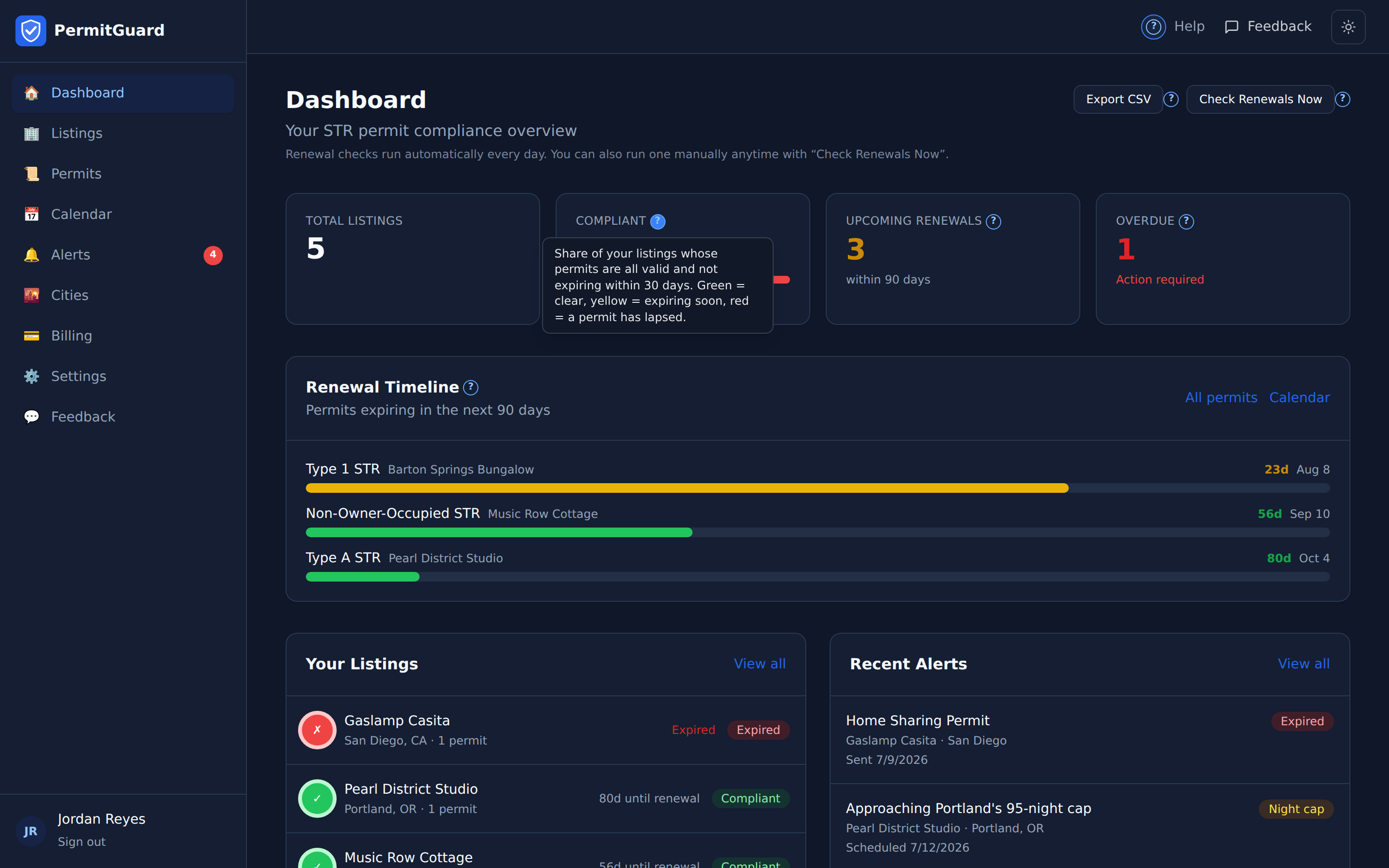
- ? toggle (top bar) — turns on hover help: little question marks next to buttons and badges, each explaining in plain language what that control does.
- Help (top bar) — this manual.
- Feedback (top bar or sidebar) — send us a bug report or a question straight from the app; we reply by email.
15. Technical appendix (for operators)
Everyday users can stop reading here. This section is for whoever operates the deployment.
- App runs on port 7021 under pm2 (
permitguard), Next.js App Router, Postgres via Prisma. - Auth is MartelloAuth (credentials + Google), with optional TOTP 2FA and self-serve password reset.
SKIP_AUTH=truein.env.localbypasses auth in local dev only. - Email is delivered via Brevo and SMS via Twilio, both routed through the keys-gateway (no provider API keys on this box). If a provider isn't provisioned, sends are logged and reported as not delivered — never falsely marked sent.
- Renewal checks run daily at 08:00 UTC via cron (
agents/run-renewal-check.sh→/api/cron/check-renewals, BearerCRON_SECRET). The dashboard's "Check Renewals Now" runs the same engine on demand via session auth. The engine warms the Neon connection with a short backoff first — a cold start previously killed the whole run (2026-07-14) and skipped that day's alerts. - SMS cost controls (
src/lib/alert-engine.ts): texts fire on all five renewal windows, but only whensmsAllowedForHost()passes — paid plan re-checked at send time (not just when the toggle is saved), host opted in, phone on file. An alert row texts at most once ever (Alert.smsSentAt), so an email retry can't re-text. Undelivered texts are logged and counted insmsErrors, never recorded as sent. - City-data freshness review runs from
scripts/run-city-review.sh(cron, 1st of the month): flags rule sets older than their review interval — 90 days by default (City.reviewIntervalDays, Prisma default90; per-city values may shorten it further) — plus broken portal/registry URLs, intoagents/city-review-report.md. Fixes go intoprisma/seed.ts, thennpm run db:seed(idempotent upsert; restampslastReviewedAt). All active cities are on the 90-day interval; at the 2026-07-21 snapshot the 30 cities then active were all within it (max age 50 days). - Automated change detection runs from
agents/run-rule-verification.sh(cron, 2nd of the month at 07:30 UTC — deliberately the day after the city-review job so the two never contend for the same DB/gateway window). It fetches each city's official source, normalizes and hashes it, and diffs against the last known-goodSourceSnapshot. Since 2026-07-21 it can write a rule column: the gate is evidence quality and blast radius, not human-vs-machine (src/lib/verification/apply-auto.ts). A field is written unattended only when the value is grounded in a verbatim quote verified present in the fetched text, confidence ishigh,parseProposedValue()accepts it, andblastRadiusReasons()is empty; everything else files a PENDING proposal. The two DB CHECK constraints onRuleChangeProposalstill stand —applied_requires_approval(appliedAtsettable only whenstatus = 'APPROVED') anddecision_requires_reviewer(any non-PENDING/SUPERSEDEDrow must carryreviewedBy+reviewedAt) — but they no longer imply a human: an auto-applied row satisfies them withauto:extractor@<model>and stores source URL, quote, model, confidence and prior value alongside the update. Do not weaken these, and do not describe them publicly as a human-approval gate. - Automated checking does not cover every city, and public copy must not imply it does. First sweep (of the 30 cities then active): 24 of 30 checked OK, 6
FETCH_FAILED(3 genuine HTTP 404s on stored URLs, 3 timeouts/no-data). Cities without a healthy check surface asMONITORING_UNAVAILABLEon their badge. User-facing surfaces describe the *process* and point at the per-city badge for per-city status; they never publish a single number implying uniform success. - Live registry verification uses public Socrata datasets (Austin, New Orleans, Seattle) — see
src/lib/scrapers.ts. Austin matches street + ZIP because the dataset redacts house numbers. - Billing is Stripe on the banded volume pricing in §11 ($29 / $92 / $182 / $307 at 3 / 10 / 25 / 50 listings — the per-listing rate steps down at 4–10, 11–25, and 26+; it is not a flat $9/listing above 3). 14-day trial tracked on
Host.trialEndsAt; after trial,POST /api/listingsreturns 402 until subscribed. - Demo/screenshot data:
npx tsx scripts/demo-seed.tscreates a fully fictional host ([email protected]);--purgeremoves it. Never screenshot real customer data. - This manual is rendered in-app at
/helpfromUSER-MANUAL.mdat the project root.